
Free reporting template
Stripe Revenue by Product
Google Sheets Template
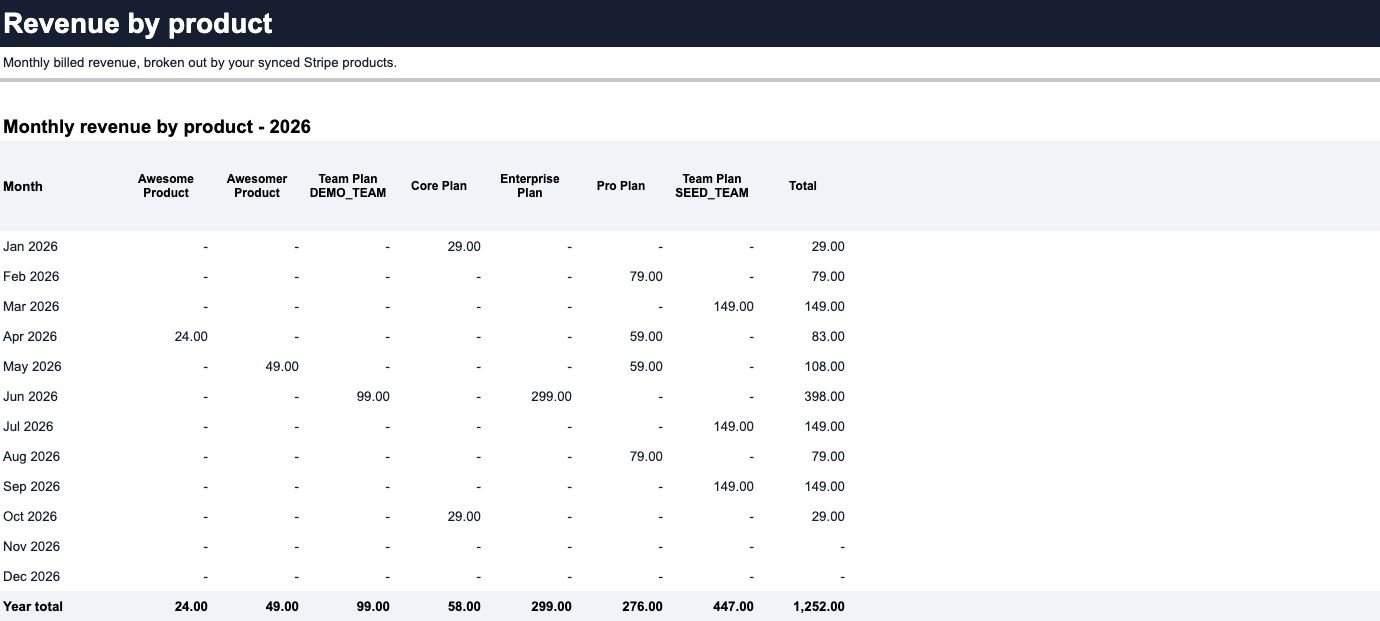
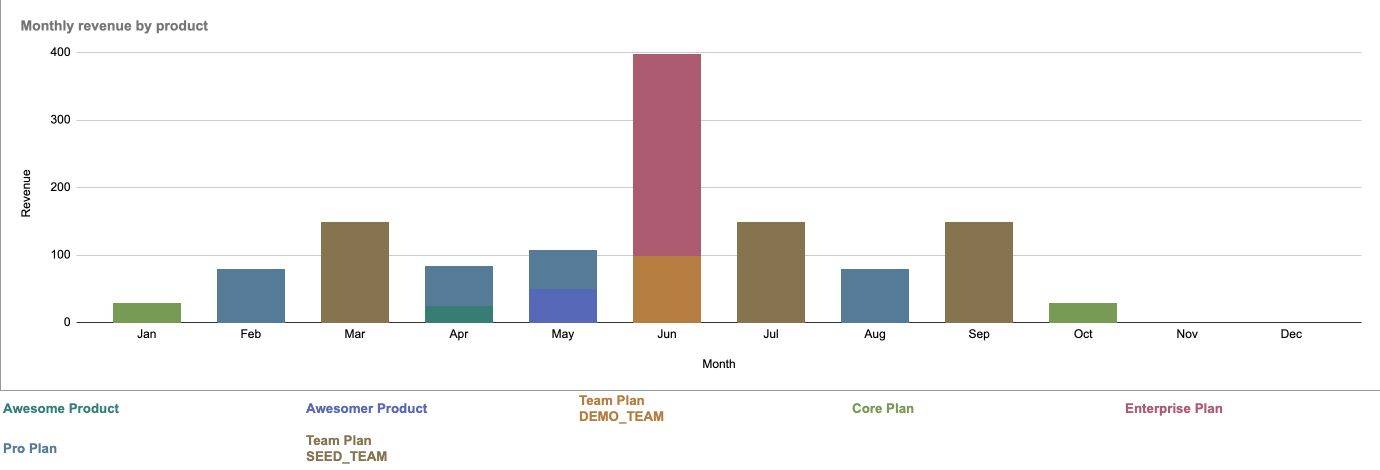
Compare monthly billed revenue by product. Add this reporting tab to your SyncStaq Sheet to use your synced invoice data.
Use your synced data
Add the report to your SyncStaq Sheet.
Start with a dedicated SyncStaq spreadsheet that already has synced invoices and invoice line items.
Make your own template copy
Click Copy the template to create an editable copy.
Copy the reporting tab
Right-click Working Sheet, then choose Copy to > Existing spreadsheet. Select your dedicated SyncStaq spreadsheet or paste its URL into the picker.
Name your report
In the destination spreadsheet, rename Copy of Working Sheet to Revenue by Product. Leave your original Working Sheet and synced data tabs unchanged.
Choose a month to explore
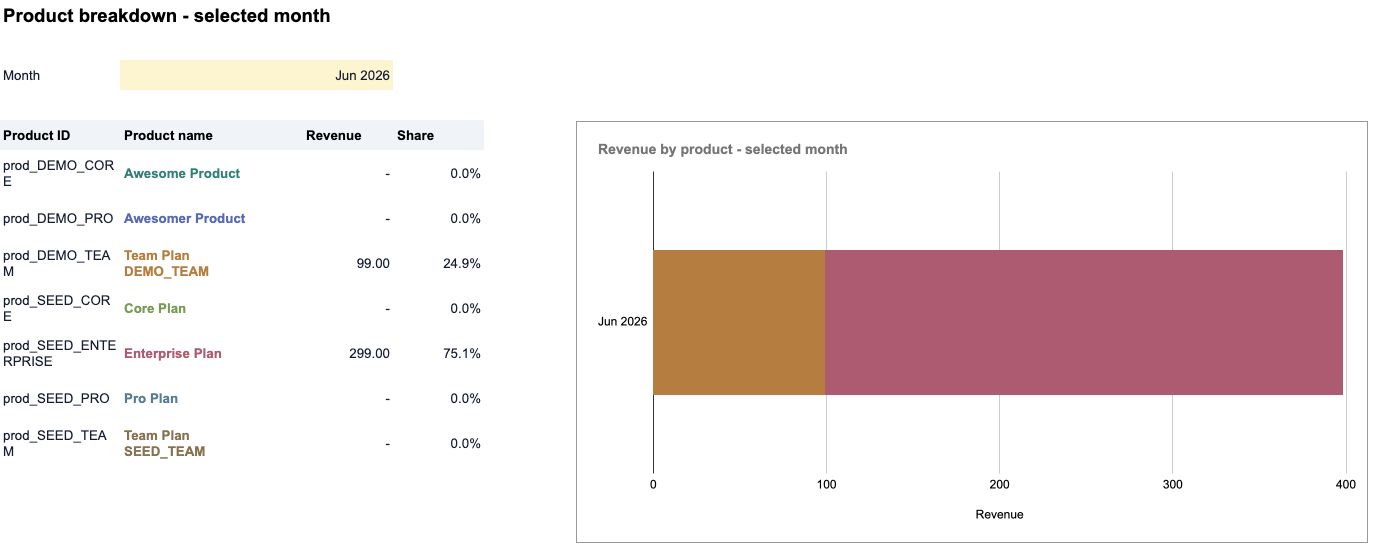
Enter a date in the yellow Month cell for the lower breakdown. The monthly overview uses the latest year in your finalized invoice data.
Template questions
Does copying the template connect it to Stripe?
No. The template opens with example data. To use your own records, copy its reporting tab into your existing SyncStaq-created spreadsheet. SyncStaq supplies the data; the template supplies the report.
What counts as billed revenue?
Synced invoice-line subtotals minus line discounts, grouped by the invoice's finalized month in UTC. Paid, open, and uncollectible invoices are included; draft and void invoices are excluded. Tax is not deducted again, and refunds and credits are not automatically allocated to products. This is billed revenue, not cash collected, recognized revenue, or MRR.
Will the report change when my synced data changes?
The formulas reference your destination Sheet's invoice and line-item tabs. When those values change, the report recalculates from them. The source tabs must retain the standard SyncStaq names and headers.
Does it combine different prices for the same product?
Yes. Lines are grouped by Product ID, so multiple prices for one product contribute to that product's total. Products with the same display name but different IDs remain separate.
Why might a line be missing from the totals?
Draft and void invoices are excluded, as are lines with invalid amounts, missing invoice matches, or other source validation issues. The report flags invalid lines. It cannot include history that is absent from your synced tabs.
Can I change the formulas and charts?
Yes, in your own copy. Keep the synced source tabs unchanged and edit the Revenue by Product tab. If you need more than 13 products or 20,000 rows, the chart series and supporting formula ranges need to be expanded together.
Understand the data behind the report.
Choose a revenue definition before comparing products.
Understand the product and price detail within an invoice.
Distinguish billed amounts from collected and net revenue.
Need Stripe billing data in Sheets?
SyncStaq keeps the source data available without repeated CSV exports or custom scripts. Add this reporting tab after your dedicated Sheet has synced.